
.png)
Campaigns
Learning Campaigns let you assign courses, assessments, and handbooks to groups of learners, track their progress toward a deadline, and send automatic reminder emails.
Dashboard
A summary view of everything happening across your learning campaigns. Use it to see at a glance how many campaigns are running, how learners are progressing, and which campaigns need attention.

.png)
WHAT YOU CAN DO HERE?
Explore the business at a glance.
Create Campaign - opens the step-by-step campaign builder.
Create from Template - starts the same
builder pre-filled with a ready-made campaign type and learning sty
View Campaigns - jumps to the full campaign list.
Departments - jumps to the Departments page.
Total Campaigns - count of all campaigns you've created.
Active - campaigns currently running.
Scheduled - campaigns set to start on a future date.
Draft - campaigns not yet published
Completed - campaigns every assigned learner has finished (or that have ended)
Overdue Campaigns - campaigns that have learners past their due date.
Total Learners Assigned - total number of learners assigned across all campaigns.
Overall Completion Rate - the percentage of assigned learning that has been completed.
Learners At Risk - learners who look unlikely to finish on time
Campaign Performance panel - Assigned,Started, Completed, and Overdue counts, a progress bar, and the average number of days it takes learners to complete a campaign.
Recent Campaigns list - the newest
campaigns with learner count, completion percentage, and status; click one to open it

How do I do it?
A simple path from login to insight.
1
Review the stat tiles at the top for a quick health check of all your campaigns.
2
Check 'Overdue Campaigns' and 'Learners At Risk' to see if anything needs your attention.
3
Click 'Create Campaign' to start a brand-new campaign, or 'Create from Template' to start from a ready-made setup.
4
Click any campaign in 'Recent Campaigns' to open it and see full details.
5
Use 'View Campaigns' or 'Departments' to move to the other Campaigns pages.
Campaigns
The full list of every learning campaign you've created, with search, filters, and quick actions. This is also where you build a new campaign, using an 8-step guided wizard that walks you through content,audience, scheduling, and reminders.
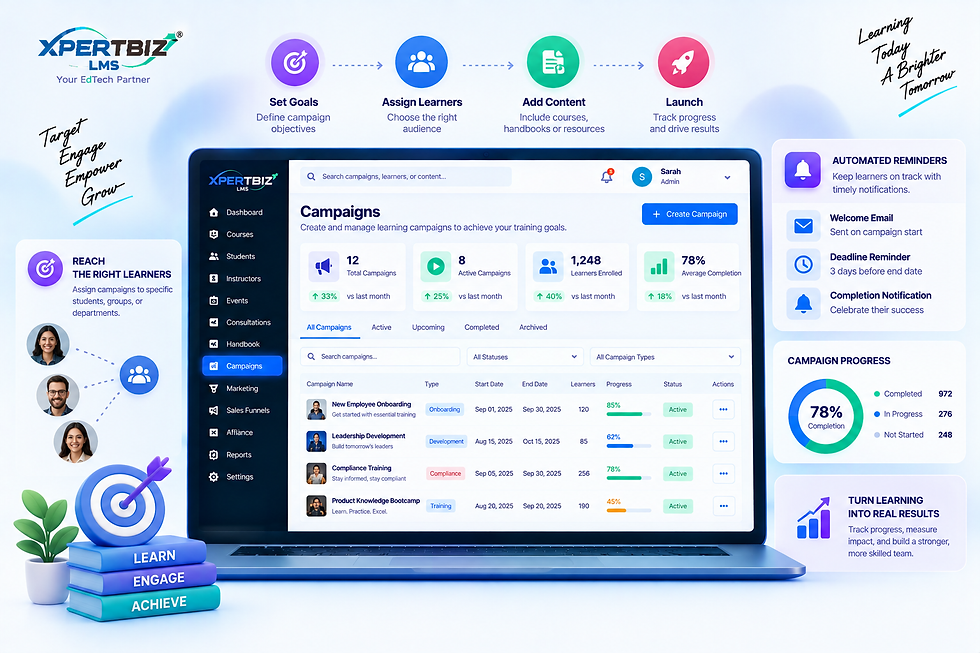
WHAT YOU CAN DO HERE?
Explore the business at a glance.
Search by campaign name.
Status filter - Draft, Scheduled, Active,
Paused, Completed, Archived
Type filter - Mandatory Training, Compliance Training, New Employee Learning, Course Assignment, Learning Path Campaign, Certification Campaign, Recertification, Skills Development, Department Training, Role Based Training, Product Training, Assessment Campaign, Annual Training, Learning Challenge.
Table columns - Campaign Name, Type,Content (number of items), Learners (number assigned), Due Date, Progress (average % across learners), Completion (% who fully
finished), Owner, Status.
Row menu - Duplicate (copies the campaign as a new draft), Delete (also removes its content list, reminder rules, and learner progress).
Create Campaign button - opens the
campaign builder wizard.
Wizard step 1, Campaign Info - Campaign Name, Description, Campaign Type, Campaign Owner (a staff member), Campaign Thumbnail
image, Tags.
Wizard step 2, Learning Content - add
Courses, Assessments, Handbooks, or an External resource (title + optional link); mark each item Required, Optional, or Prerequisite;set an estimated time in minutes; reorder or
remove items.
Wizard step 3, Learning Rules - Sequential(learners must complete content in order) or Flexible (any order); a toggle requiring all required content to be completed; a minimum
assessment score %; a minimum number of learning hours.
Wizard step 4, Audience - target All Learners, a specific Department, Specific Learners (searched and picked by name), or a Condition (enrolled in a course, completed a course,failed an assessment, or inactive for N days);shows a live preview of how many learners will be assigned
Wizard step 5, Enrollment - Enrollment mode (Automatic, Self-Enroll, Manager enrollment, or Administrator enrollment); optional grace period in days; optional maximum attempts.
Wizard step 6, Schedule - Start immediately,on a fixed date, or on each learner's own joiningdate; Due date as a fixed date or N days after enrollment / after joining date.
Wizard step 7, Reminders - add automated reminder emails that fire a set number of days after assignment, before the due date, after the due date (overdue), or after a period of inactivity; each reminder has its own subject and message (with placeholders like learner name, campaign name, due date, progress, and assessment score) and can optionally also notify the campaign owner.
Wizard step 8, Review & Publish - a summary of the whole campaign; Publish assigns the audience, creates enrollments, and sends assignment notifications.
How do I do it?
A simple path from login to insight.
1
Click 'Create Campaign' (or pick a template first for a head start).
2
Fill in the campaign's name, type, owner, and thumbnail, then click Next.
3
Add the courses, assessments, handbooks, or external links learners must complete.
4
Set the learning rules (order, passing score,minimum hours),then choose who the
campaign is for (all learners, a department,specific people, or a condition).
5
Set how learners get enrolled and the start/due dates, and optionally add reminder emails.
6
Review everything on the final step and click 'Publish Campaign' to assign it to learners.
Departments
A simple way to group learners into departments, mainly so you can target a learning campaign at everyone in one department at once.
WHAT YOU CAN DO HERE?
Explore the business at a glance.
New department name field and Add button.
Department list - name and number of
learners in each department.
Manage members - search learners by name or email and add or remove them from the department.
Delete - removes the department; its learners are simply unassigned, not deleted.
How do I do it?
A simple path from login to insight.
1
Type a department name and click 'Add' to create it.
2
Click 'Manage members' on a department.
3
Search for a learner by name or email and click them to add them to the department.
4
Click the remove icon next to any learner to take them out.
5
Click 'Save members' to confirm the changes.
GUIDE. INFORM. EMPOWER.
Put Essential Knowledge in Every Learner’s Hands.
Create structured digital handbooks that organize important information into easy-to-follow chapters, giving learners a clear resource they can access through the learner portal.
01
Build Structured Guides
Create handbooks with titles, descriptions, cover images, and organized chapters.
02
Make Content More Useful
Add text, images, videos, and links to each chapter for a richer learning resource.
03
Share With Learners
Preview your handbook, arrange chapters in the right sequence, and publish it when it's ready for learners.