
.png)
Sales
Capture and manage prospective learners through a sales pipeline, and set up the pricing plans, discount coupons, and affiliate referral program you sell through.
Leads
A CRM for prospective learners and customers captured from your Contact form, chat widget, lead popups, and consultation bookings. Track each one through a pipeline, score them, follow up, and convert them into enrolled learners.

.png)
WHAT YOU CAN DO HERE?
Explore the business at a glance.
Three tabs - Inbox (a searchable table),Pipeline (a Kanban board), and Automation (a follow-up email sequence).
Inbox tab - table of Name, Contact, Course Interest, Source, Stage, Assigned owner, Score,Tags, and Captured date; search by name/email/company; filter by stage, source, or assigned owner; Export CSV; Add Lead manually.
Pipeline tab - one column per stage (New,Contacted, Engaged, Qualified, Demo Requested, Trial Started, Enrollment Intent,Converted, Lost, Nurture); each card shows the lead's score and a "Move" menu to change its
stage.
Automation tab - an ordered follow-up email sequence: each step has a delay (days after the lead was captured), a subject, a body (supports a {{name}} placeholder), and an enabled toggle; a step is never sent twice to the same lead, and archived leads are skipped;
steps can be reordered, added, or deleted
Lead detail - Overview (contact info, lead type, company, message, source and UTM/campaign attribution, tags); Learning Interest (which courses they're interested in, and which is primary); Demo Requests (consultation
bookings tied to this lead); Activity (add internal notes, see a timeline of stage/score/tag changes); Qualification (mark Qualified/Not Qualified/Nurture, individual vs. organization,company name, number of learners, any custom fields captured on the form); Score (their point total and why, broken into individual scoring events)
Convert - pick the course(s) to convert them into; if they already have an LMS account they're enrolled immediately, otherwise they get a signup invite instead.

How do I do it?
A simple path from login to insight.
1
To move a lead through the pipeline: open the Pipeline tab, click "Move" on their card,and pick the new stage (or change the Stage dropdown directly in the Inbox table).
2
To convert a lead: open the lead's detail page, click Convert, choose which course(s), and confirm.
3
To set up automated follow-ups: open the Automation tab and add a step with a delay, subject, and body.
Funnels
A drag-and-drop builder for landing pages, opt-in pages, and order pages, published as a sequence of steps at your own /f/<funnel>/<step> web address. Not to be confused with the Leads Pipeline above - this is about building the pages themselves.

WHAT YOU CAN DO HERE?
Explore the business at a glance.
Funnels list - create, duplicate, or delete a funnel; each funnel shows its step count and status(Draft/Published), with a View Live shortcut once published
Funnel detail - its steps (e.g. Landing Page,Opt-in Form, Order Form, Thank You), which you add, rename, delete, and drag to reorder; a Publish/Unpublish toggle for the whole funne
Step editor - a block palette to add Heading,Text, Image/Video, Button, and Form Embed blocks; drag the handle on any block to reorder it; delete a block; each block type has its own inline fields to fill in (e.g. a Button's text and link, or which Form a Form Embed block should show).
Form Embed block - pick any form you built under Automations → Forms (including its conditional field logic) to collect leads or orders on this step.
Image/Video block - upload directly in the block, or paste a link.
How do I do it?
A simple path from login to insight.
1
Click 'New Funnel', give it a name - a URL safe address (slug) is generated for you.
2
Open the funnel and click 'Add step' for each page in your flow (e.g. Landing Page, then Opt-in Form, then Thank You).
3
Open a step and use 'Add a block' to build the page: headings, text, images, buttons, and (optionally) an embedded form.
4
Drag blocks to reorder them, and drag steps on the funnel page to reorder the flow.
5
If a step collects information, add a Form Embed block and pick the form to use.
6
Click 'Save Page' on each step you edit, then click 'Publish' on the funnel itself to make it live at /f/<funnel-slug>/<step-slug>
Pricing Plans
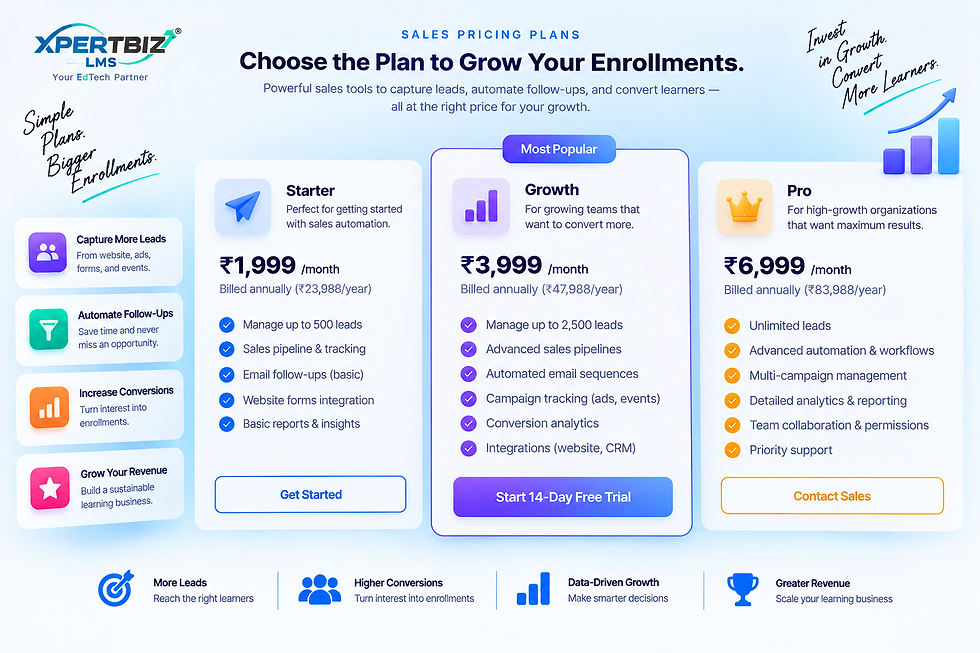
Build subscription, membership, or package plans that you sell on your site - Free, One-time payment, or Recurring - bundling access to one or more courses (and optionally community groups,events, or channels).
WHAT YOU CAN DO HERE?
Explore the business at a glance.
List - filter by status (Active/Hidden/Archived),search, sort by name, bulk-archive selected plans; per-plan menu - Edit, View subscribers,
Copy Link, View Live Page, Invite Participants,Duplicate, Hide/Show on site, Archive/Restore,Delete.
Sequence column - up/down arrows to reorder plans (controls their display order on your public pricing page); disabled while sorting by name or searching - clear those first to reorder.
Plan info - Plan name, Description, a card image, and a list of feature/perk bullet points shown to buyers.
Plan pricing - pricing model: Free, One-time Payment, or Recurring Payments; price(optionally shown alongside a higher "original" compare-at price with a limited-time-offer expiry); billing frequency (Weekly/Monthly/Yearly) for recurring plans; an optional setup fee; an optional free trial (number of days).
Benefits - which courses this plan unlocks,each with its own access duration (Unlimited,or a number of Days/Weeks/Months/Years);
also community Groups, Events, and Channels the plan unlocks.
Support Priority - override the default ticket priority for this plan's subscribers.
Plan duration - how long the plan itself lasts: a fixed number of months, until canceled, or a custom length/number of payments
Start date - a specific date, or let the
customer choose their own start date at checkout.
Settings - purchase limits (max per customer,max total purchases), Allow plan cancellation toggle, an affiliate commission rate override for this plan, a plan-specific policy/terms text, a confirmation-page link shown after purchase,and tags.
Invite Participants - search active learners and send them this plan's link directly.
How do I do it?
A simple path from login to insight.
1
Click "Create Plan".
2
Fill in the plan name, description, and card image.
3
Choose a pricing model (Free / One-time /Recurring) and set the price.
4
Turn on Benefits and pick which courses (and optionally groups/events/channels) the plan unlocks.
5
Save, then set the plan's status to Active so it appears on your public pricing page.
Coupons
Create single-use discount codes that learners can enter at checkout to get a discoun

WHAT YOU CAN DO HERE?
Explore the business at a glance.
Coupon Code - the code learners type at checkout (letters, numbers, hyphens,
underscores only).
Description - an internal note, not shown to learners.
Discount Type - Percentage off or Flat amount off.
Discount Value - the percentage or flat amount to take off.
Applies To - Everything, Courses & Plans,Courses only, Plans only, Consultations only, or Marketplace only (plan discounts only apply to one-time plans, not recurring subscriptions).
Expires On - the date/time the coupon stops working.
Active - toggle a coupon on/off without deleting it.
Status shown in list - Active, Redeemed, Expired, or Inactive.
How do I do it?
A simple path from login to insight.
1
Click "Create Coupon"
2
Enter a code, choose the discount type and value, choose what it applies to, and set an expiry date.
3
Save, then share the code with the learner(s) you want to give the discount to.
4
Note: once a coupon is redeemed it can no longer be edited or reused - it's one-time use only
Affiliates
Run a referral program where people share a unique link and earn a commission on every purchase made by learners who sign up through it.

WHAT YOU CAN DO HERE?
Explore the business at a glance.
Name and Email - the affiliate's contact details.
Commission Rate (%) - the percentage they earn on referred purchases.
Referral link - automatically generated for each affiliate; click to copy and share.
Referrals - how many people have signed up through their link
Pending / Paid out - commission owed vs. already paid to them.
Active/Inactive toggle - turn an affiliate's link on or off.
Commission history - expand an affiliate to see every commission earned per order, and mark each one "Mark paid" once you've paid it out.
Delete - permanently removes the affiliate and their entire commission/referral history,including anything already paid.
How do I do it?
A simple path from login to insight.
1
Click "New Affiliate"
2
Enter their name, email, and commission rate, then save.
3
Copy their referral link and share it with them.
4
As you pay out earned commissions, expand the affiliate and click "Mark paid" on each one.
GROW THROUGH PARTNERS
Turn Your Network Into Your Growth Engine.
Build an affiliate network that helps you reach more learners, increase enrollments, and reward partners for successful referrals.
01
Expand Your Reach
Add affiliate partners and give them unique referral links to promote your courses and offers.
02
Know What’s Working
Monitor referrals, enrollments, commissions, and affiliate performance from one place.
03
Grow Together
Track commissions and payouts while rewarding partners for the enrollments they generate.